Transfer resources between stores
Pump propellant, charge, food, waste, helium-3 or antimatter out of one tank, battery, pod, hold or trap and into another in flight — including from one docked ship into the other.
Use this to refuel a ship in orbit from a tanker you docked to it, to empty a stage's tanks into the one you are keeping before you drop it, to share a battery's charge with a pod that is running flat, to hand a cabin's waste to a cargo bay, to take a tanker's helium-3 aboard a station before the tanker leaves, or to fill a warp probe's empty trap from the antimatter a converter made.
Before you start
- The part you tap stores something, and some other store the resource can reach is built to hold it too. A lone tank has nowhere to pump, and its sheet has no transfer on it.
- There is something to move: a load on the sending side and room on the receiving side. While everything is full (or empty) the button is greyed.
- Somebody is awake at the controls, or a probe core is flying the ship. The pumps answer the ship's controls like any other part.
Steps
- Tap a store on the rocket — a fuel tank, a battery, a pod, a cabin, a cargo bay. Its sheet opens, with what it holds at the top.
- Tap Transfer resources. The sheet closes and the ship itself becomes the chooser: the part you tapped is ringed in yellow, every store the load can reach in green when it has room for it, and in red when it is full. The bar across the top names the load in its own colour.
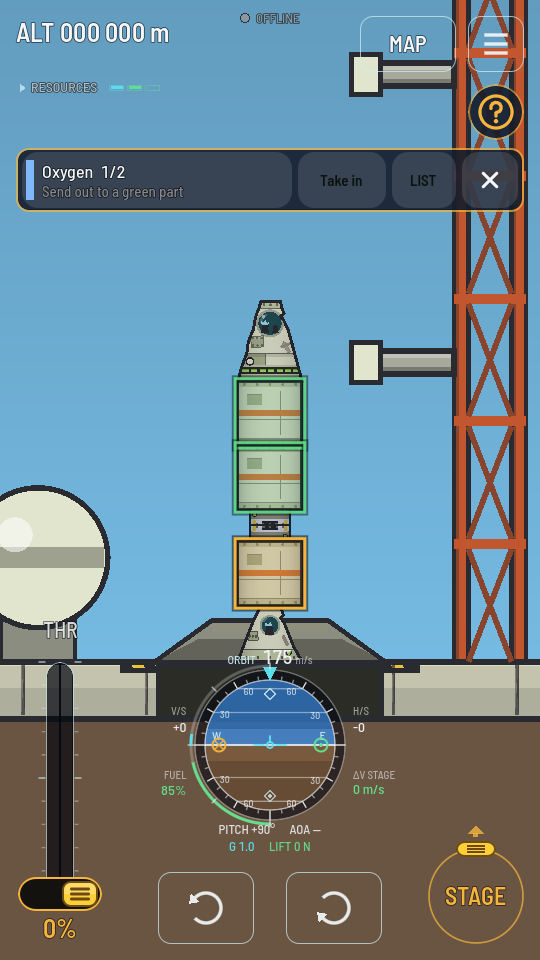
The tanker's tank is yellow; both of the station's empty tanks can take its oxygen. - Pick the resource. "Oxygen 1/2" says the part holds another load: tap the name for the next one — a tank has Oxygen and Methane, a pod Electricity, Food and Waste. The rings follow. Move one resource at a time.
- Pick the direction. The pick opens on sending when the part holds some of the resource and on taking in when it is empty. The button beside the name turns it round: Take in fills this part from another, and then a green ring is a store with some to give and a red one an empty store.
- Tap a green store. The transfer sheet opens, titled Transfer resources, with the resource, the direction and that store already picked. A tap on a red store says why it cannot take part; a tap on the yellow one, or on the cross, puts the rings away.
- Or tap LIST for the sheet with nothing picked yet: every store that can hold the resource, with how full it is. That is where a whole ship's stores are one row — on a docked ship All of Station comes first, then each store on its own — and where a store you cannot see on screen is. The sheet's own tiles, Send out and Take in change the picks there too.
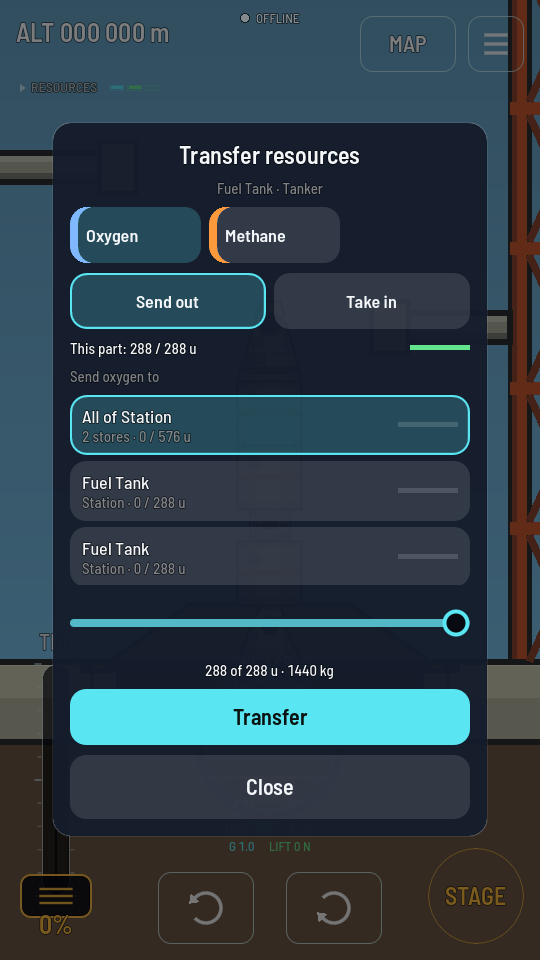
The tanker's oxygen, headed for both of the station's empty tanks at once. - Set the amount with the slider. It starts at the most that can move — the smaller of what the sending side holds and the room the receiving side has — and the line under it says how much that is and what it weighs: "288 of 288 u · 1440 kg".
- Tap Transfer. The load moves at once and a toast names it: "Moved 288 u of oxygen to Station". The sheet stays open, so the next load — the methane — is one tile away. Tap Close when you are done.
Moving a whole ship's load
A row such as All of Station takes every store of that resource on that ship together. What arrives is shared among them by the room each has, and what leaves is taken from each by what it holds, so two tanks fill together and two tanks empty together.
When the part you tapped is on a docked ship with more than one store of the resource, a second pair of buttons appears under the direction: This part or All of Tanker (named for the ship the part is on). Pick the second and the whole tanker is the sending side — or the receiving side, on Take in. The row for the part's own ship then reads Rest of Tanker when it leaves some of that ship's stores out. On a ship that has not docked with anything the list's first row is All other stores.
What can go where
A resource only moves where it could flow on its own, and only into a store built to hold it.
| Resource | Reaches |
|---|---|
| Oxygen, methane | Along the fuel path: through tanks, docking ports, separators and the other joints that carry fuel, and along a fuel line whichever way its arrow points. A pod or a beam in the way blocks it. |
| Electricity, food, waste, hypergolic propellant, helium-3, antimatter | Through every joint on the ship, pods and beams included. |
| Solid fuel, ablator | Nowhere. A booster's grain is cast into its case and a heat shield's ablator is bonded to it; neither can be pumped, so boosters and heat shields offer no transfer. |
The receiving store has to be one that holds that resource: a pod has no oxygen tank to fill, and a Cargo Bay takes only what it was loaded for in the hangar — a hold loaded with room for waste can take a cabin's waste, one loaded only with food cannot (Load a cargo bay).
What the sheet says when nothing can move
| The line under the slider | What to do |
|---|---|
| "Pick where it goes" | Nothing is picked on the list yet. Tap a row. |
| "Nothing left to send" | The sending side is empty. Pick another resource, or turn the direction round. |
| "No room at the other end" | The store you are sending to is full. Pick another, or make room in it first. |
| "No room here" | On Take in: this part is already full. |
A greyed Transfer with an amount showing means nobody can work the ship right now — the pilot has blacked out, or the ship has no one and no link at the controls.
What you should see
The resource readout in the corner and each part's sheet show the new levels straight away. Nothing is made or lost — the ship weighs exactly what it did — but the weight has moved, so the ship's balance shifts with it, and an engine that burns from the stores you filled now has that much more to burn. Pumping propellant from one docked ship into the other above 70 km earns the Filling Station achievement.