Tap a part in flight
Reach any part's own actions and in-flight settings without leaving the flight screen.
You need this to fire a part by hand instead of by stage, to check or change a setting mid-flight, such as an engine's power limit, or to rename the ship you are flying.
- The ship is on screen and you can tap its parts. Nothing under the HUD's own buttons and readouts counts.
Steps
- Tap the part. Its sheet opens over the flight screen, named for the part: Engine, Command Pod, and so on.
- Read what the part is holding. Under the name is one line for every resource the part can store — a fuel tank's oxygen and methane, a pod's electricity and food, an RCS tank's hypergolic — with a level bar, the load as current / max in units, and the flow per second in brackets: amber while the part is spending it, green while it is making it. The lines keep counting while the sheet is open. This is that part's load, which is the question the RESOURCES panel in the corner cannot answer — that one adds up everything the running stage can draw, so it cannot tell you which tank of a pair is the empty one. A part that stores nothing, an engine or a separator, shows no lines.
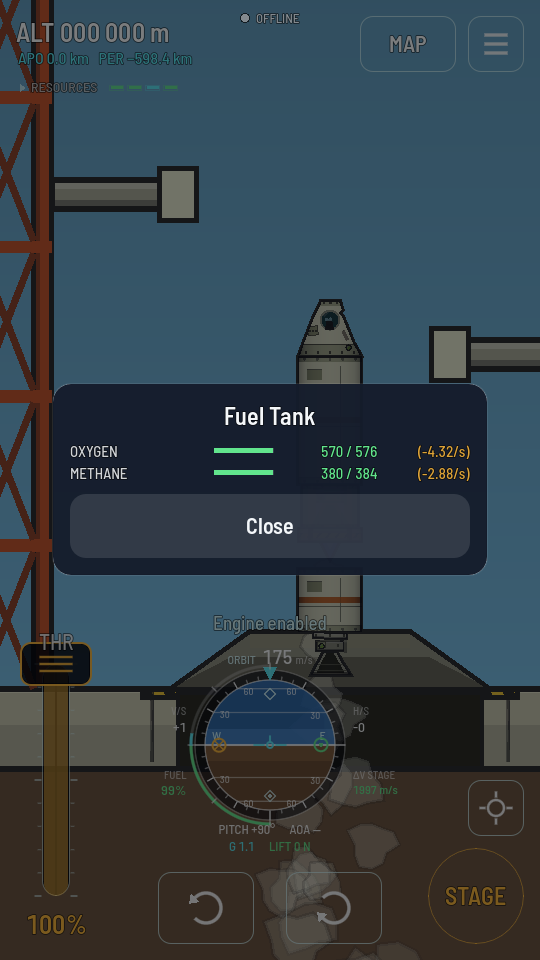
A tank feeding a lit engine: both lines falling, the rate in amber. There is nothing else to do with a tank, so the sheet is its load and Close. - Tap an action, if the part offers one. Each button is worded for what the part will do right now: an unlit engine offers Ignite, a lit one offers Shut down; a packed parachute offers Deploy, an open one offers Cut, and a spent one offers Repack, which only an engineer aboard can press; a pod or a cabin offers Transfer crew, which opens a chooser of its own (Transfer crew between modules); and a part that stores something — a tank, a battery, a pod, a hold — offers Transfer resources while another store could take its load (Transfer resources between stores). An action closes the sheet and the HUD's toast says what happened.
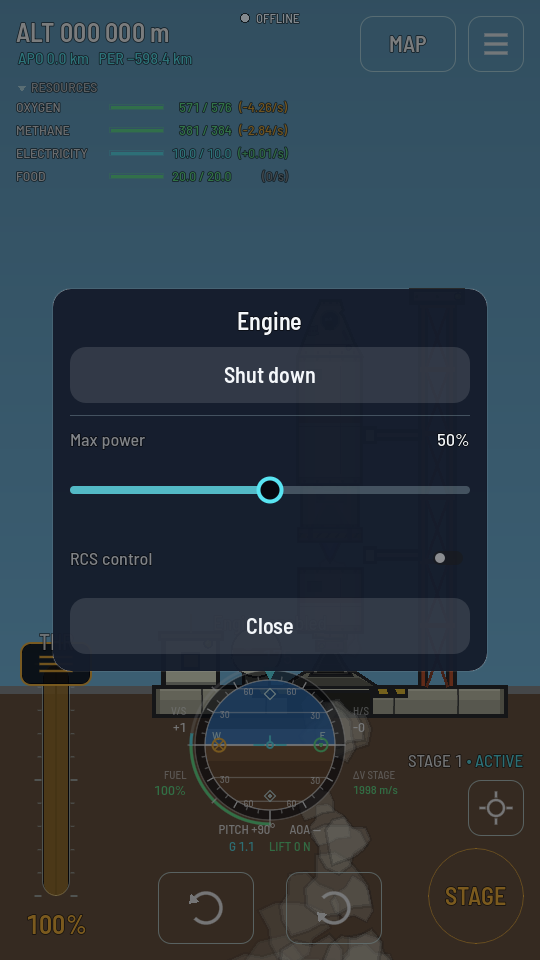
A lit engine's sheet: Shut down, its power slider, and the RCS control toggle. - Change a setting, if the part offers one. Only the settings that make sense mid-flight are here: an engine's Max power slider and its RCS control toggle, a command pod's Ship name field and its switches, Control from here, Space station, Inverted controls, Open to other players and Insurance cover (Rendezvous and docking explains what they do; the two last ones show a premium to confirm first). Inverted controls flies the ship as if you sat in the pod facing the other way: its tail becomes the nose, so the navball, prograde and retrograde, and the MOVE and DOCK pads all read the ship pointing tail first, while the turn buttons still turn the way they did. Only the pod you control from counts. A setting takes effect as you change it and the sheet stays open.
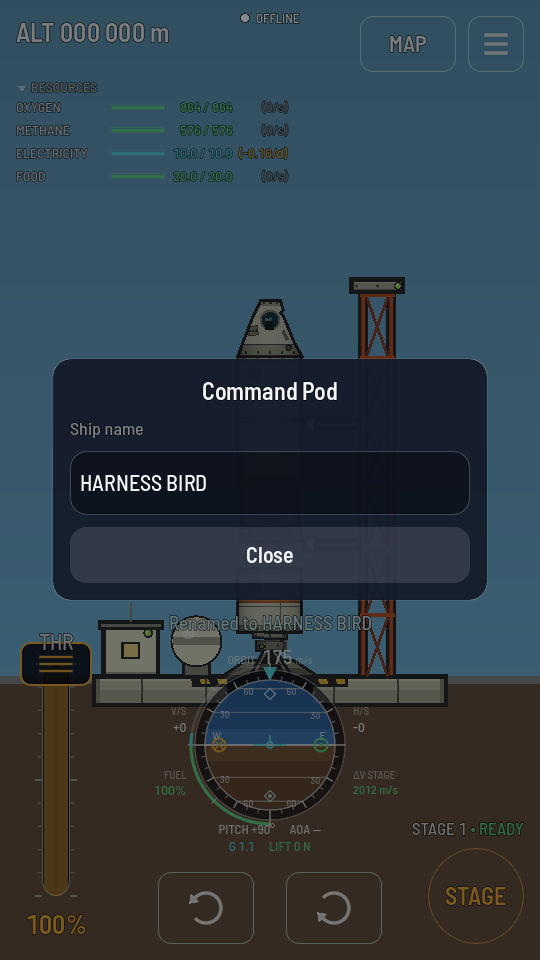
The pod offers no action — its name and the switches that say who flies the ship and whether it is a station. (Inverted controls and Open to other players have joined them since this picture was taken.) - Tap Close, or the backdrop behind the sheet. Either puts the sheet away and hands control back to the flight screen.
What you should see
A ship of another player's that you have docked with is still their ship: tapping one of its parts opens the ship's sheet, exactly as it did before the rings met, and nothing aboard it is yours to switch (Docking with another player's ship).
An action's result appears as a toast at the top of the screen and the sheet closes on its own. A part with nothing to do, no action and no setting, shows what it is holding instead — a tank's sheet is its two propellant lines and Close — and one that holds nothing either says so: "Nothing to do with this part."