Choose a destination world
Pick which world your rocket takes off from when you hold a Launch Pad on more than one.
You need this once you own a second pad, because from then on Fly asks where to instead of going straight to Earth.
Before you start
- A pad on more than one world. With one pad, the picker never opens. See the launch sites.
- A ship on the hangar canvas, with an astronaut seated in every pod.
Steps
- Tap Fly. A sheet headed Where to? opens over the hangar with one row per world you hold a pad on.
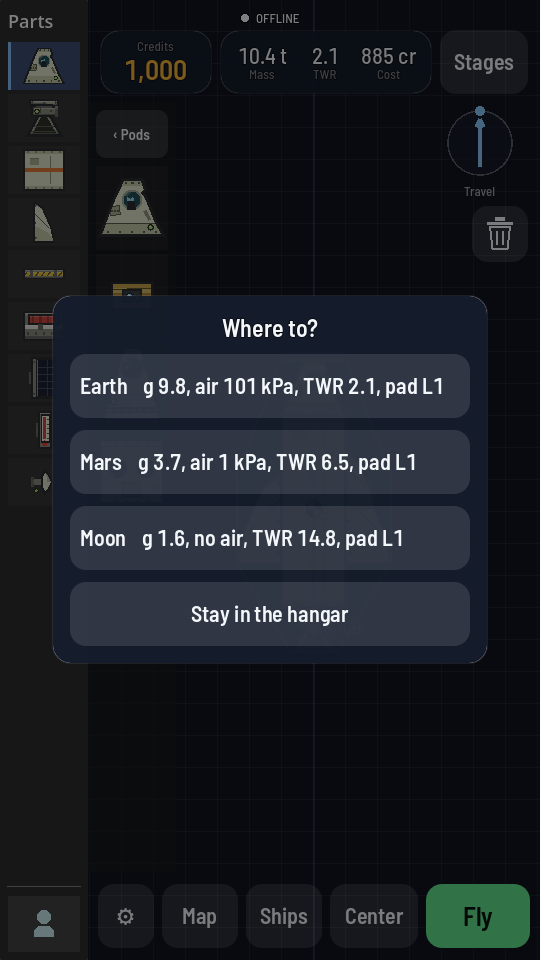
One row per world. Each carries that world's gravity, its air, this ship's TWR there, and the pad's level. - Read the four figures on each row. After the world's name come its surface gravity, its air pressure or no air, the thrust-to-weight this ship would leave that world with, and the level of the pad standing there.
- Check the TWR is over 1.0. A row reading under that will not lift this ship off that world at all. A dash means the ship has no engine.
- Look for — too big after the pad level. A row marked that way has a pad this ship is over the limits of.
- Tap the row you want. The flight opens standing on that world's pad. Tapping a row marked — too big opens that world's Space Center on its Launch Pad instead, with the upgrade priced and ready.
- Or tap Stay in the hangar. Tapping the darkened area outside the sheet does the same. Nothing is charged and nothing is launched.
What you should see
The flight screen, with your rocket on the pad of the world you chose and the throttle at 0%. The sky tells you where you are: Earth's is blue, the Moon's is black.
Note
There is a second way in. From the hangar tap Center, tap the world's name along the top, tap the Launch Pad, then Fly from here.