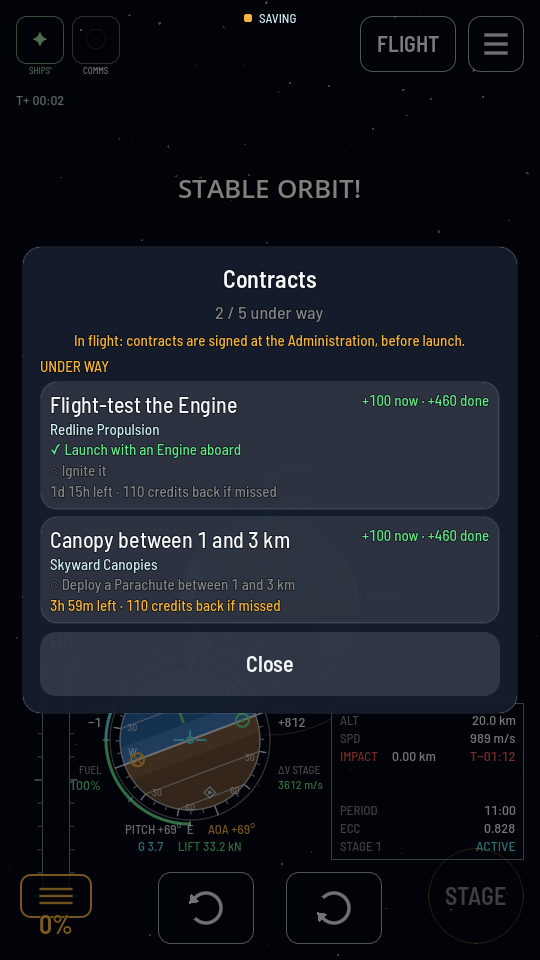
See your contracts in flight
Open the board from inside a flight to read the goals you are chasing and watch them tick off as your ship meets them.
You need this in the middle of a flight, when you want to know which goal is still outstanding before you commit to the next burn or the next stage.
- At least one contract is under way. The chip is not in the menu when nothing is.
- You are in a flight. The board reads the same from the flight view and from the map.
Steps
- Open the flight menu. Tap the three-bar button in the top right corner. The same button opens the same menu on the map.
- Tap CONTRACTS. The chip carries the number under way after a dot, so 📋 CONTRACTS · 2 means two.
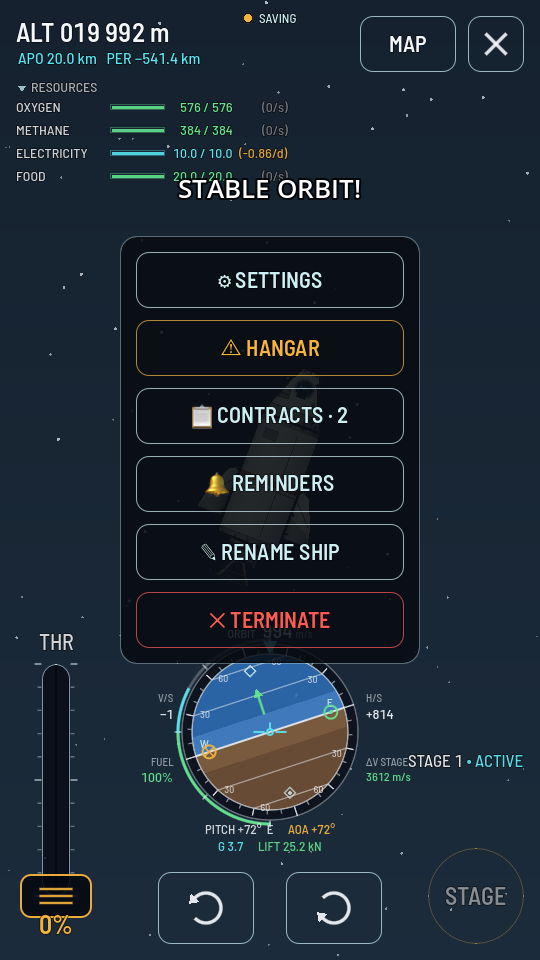
The CONTRACTS chip, third in the menu, with its count on the label. - Read the rows. Each contract under way lists its goals: a green ✓ for one your ship has already met this flight, a grey ○ for one still to go. The line at the bottom of each row counts down its deadline.
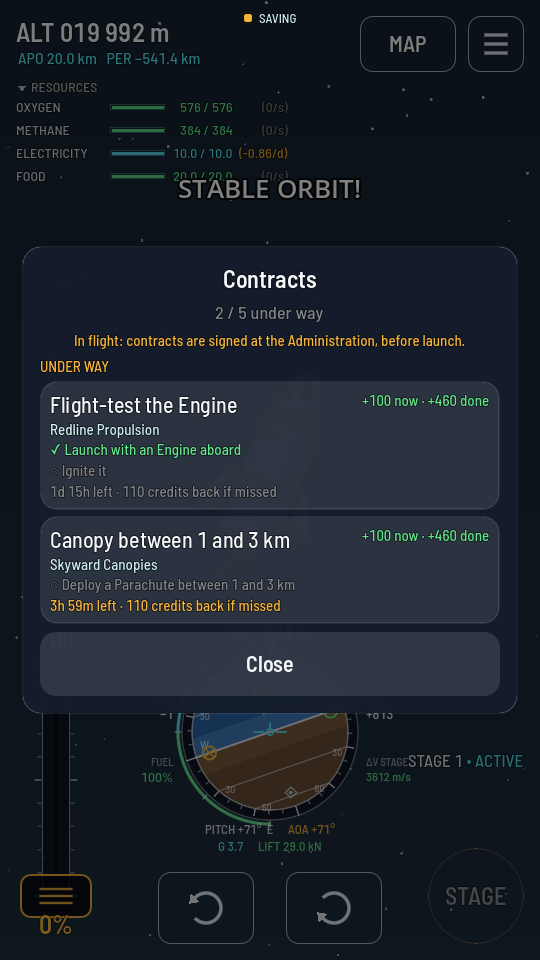
One goal met, the rest to go. The board updates as you fly. - Tap Close. Tapping the dimmed area outside the board closes it too.
What you should see
A board headed UNDER WAY and nothing else. Offers and finished jobs are not shown here, because neither can be acted on from the air, and the line under the title says contracts are signed at the Administration before launch. Nothing on this board can be accepted, dropped or changed: it is a mission list, and the flight is what changes it.
A row may carry an amber line reading signed after this ship left the pad — it is the next flight's. That contract was signed while this ship was already flying, and a contract is only met by one that leaves the pad afterwards, so none of its goals will tick here however close you come to them. It is waiting for a fresh rocket, and its deadline is still running.