Lock a part
Put a part out of reach in the hangar, so a tap goes straight through it to whatever it covers.
Use this when one part sits over another and keeps getting picked instead: a fairing closed over its payload is the usual case. Once the fairing is locked, a tap on the payload picks the payload.
Before you start
- The part is already on the ship in the hangar.
- Tap the part to select it. Four buttons marked with pictures appear at the bottom right, over Fly: rotate, flip, symmetry and lock. (Tap the part again and its sheet opens with the same four as Rotate, Flip, Symmetry and Lock.)
- Tap the lock button (a padlock), or Lock on the sheet. The part is let go and a small amber padlock appears at its top right corner.
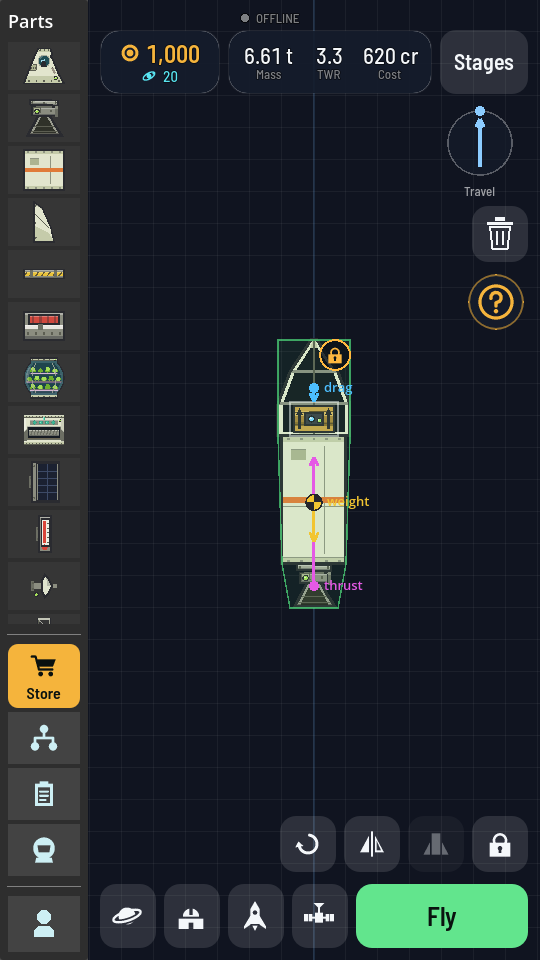
The fairing is locked, so the tap on the probe core under it picked the core.
What you should see
A locked part stays on the ship and flies exactly as before, but in the hangar it no longer answers a tap, a drag or a hold: they all reach whatever is underneath, or nothing. Moving the ship by another part still carries the locked one with it. Locking one of a symmetry pair locks its twin too.
Unlock it
Tap the padlock on the part. The padlock goes and the part can be picked again.
Note
A lock belongs to the ship on the hangar canvas on this device. It is kept when you leave the hangar and come back, but a design saved to your ships or sub-assemblies, or launched does not carry it, and a ship opened from the library comes up with nothing locked.