Show your taps on screen
Draw every touch on the screen, so a video you record of the game shows what your fingers did.
A screen recording shows the game but not your hand. With Show taps on, each finger gets a mark the recording picks up: someone watching sees which button you pressed, where you dragged and when you pinched.
- You can be anywhere: the hangar, a flight or the map.
Steps
- In the hangar: tap the small figure at the foot of the parts column to open Settings, scroll to Screen and tap the Off switch on the Show taps row. It turns green and reads On.
- In a flight or on the map: open the flight menu with the three-bar button in the top right and tap SHOW TAPS: OFF. It turns green and reads SHOW TAPS: ON.
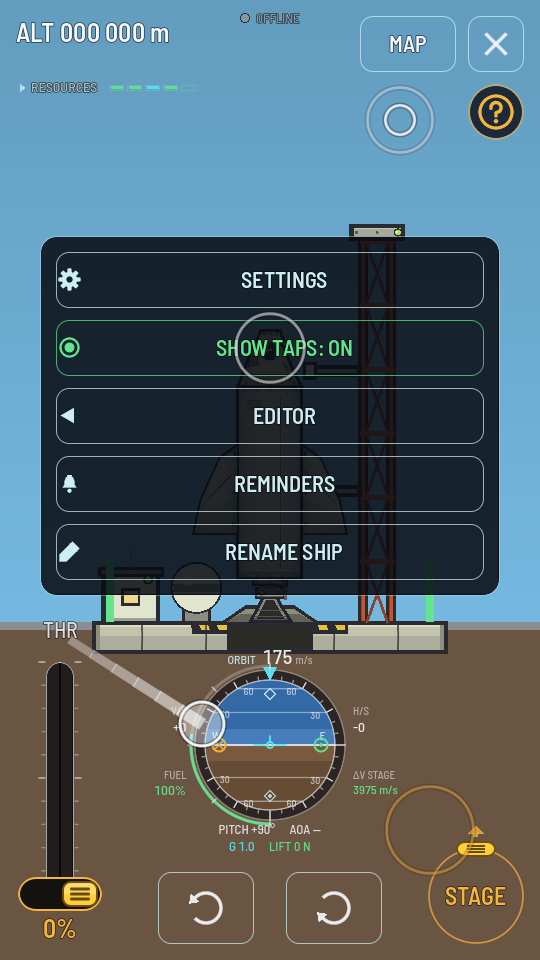
Show taps on: a tap, a drag, a long press and a zoom. - Start your phone's screen recording and play as usual.
- When you are done, tap the same switch again to turn it off.
What you should see
| You do | The screen shows |
|---|---|
| Touch | A white dot under your finger, following it |
| Tap | A ring that spreads out and fades where you lifted |
| Drag | A short fading trail behind the dot |
| Hold still | An amber ring filling around the dot; once it closes, the press is a long press, and it fades as an amber ring when you lift |
| Two fingers | Two dots joined by a line, so a pinch reads as one gesture |
| Mouse wheel or trackpad pinch | Two rings opening for zooming in, closing for zooming out |
The marks only show what you did. They never take a touch, so every button, the throttle and the map work exactly as they do with the switch off. They are drawn over everything, menus and sheets included.
Heads up
Your phone remembers the switch. It stays on after the game is closed and opened again, until you turn it off.