Read the tips
Open a short piece of advice about the screen you are on, then step through the rest of that screen's tips.
You need this when you are on a screen and wonder what else it can do: the hangar, the flight, the map, the Space Center, the Meek or the tech tree. Every one of them has its own tips, and each of them opens its tips by itself a moment after you arrive, until you tell it not to.
- You are on one of those six screens. A screen that has no tips to show has no question-mark button.
Steps
- Tap the question mark. It is the round button with a ? in it, and it stands in the same place on every one of the six screens: at the right edge, a little way down from the top. In the hangar it is under the bin, on the Space Center under ALL, in flight and on the map under MAP or FLIGHT and the menu button. In flight it shows the map's tips while the map is open and the flight's otherwise.
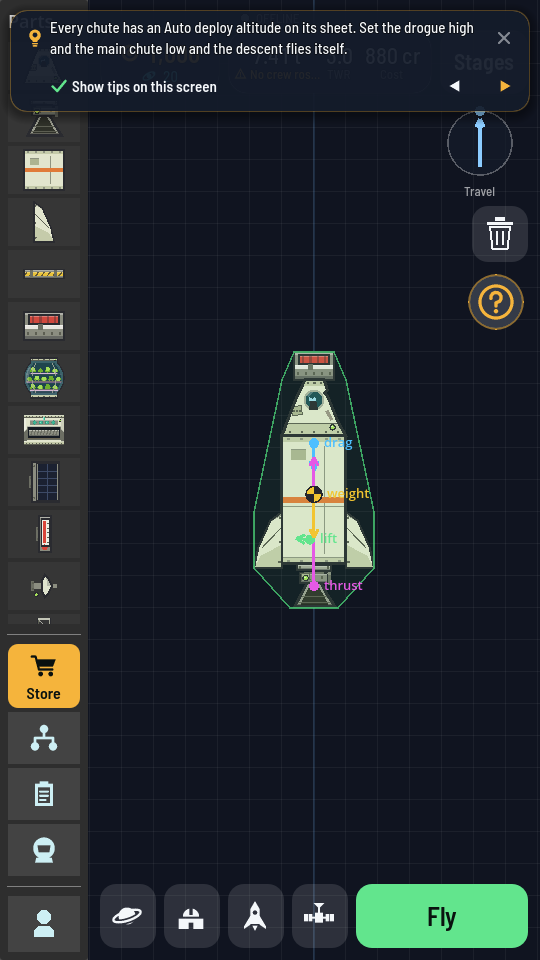
The hangar's tips. The question mark is at the right edge, under the bin. - Read the tip. It opens on a small card at the top of the screen, marked with a light bulb, on a tip picked at random from that screen's. Nothing else is dimmed, and a tap anywhere outside the card goes to the screen under it, so you can go on building or flying with the tip up, and leave it there as long as you like.
- Tap the card, or the arrows at its bottom right. A tap anywhere on the card — on the words, the light bulb or the space around them — shows the next tip, just as the right arrow does; the left arrow shows the one before. They go round the list, so the next tip after the last is the first again. A screen with a single tip shows no arrows, and a tap on its card changes nothing.
- Leave Show tips on this screen, under the tip, ticked, or untick it. Ticked, this screen's tips open by themselves every time you come to it. Unticked, they stop doing that on this screen only: the other screens keep showing theirs, and the question mark still opens this one's whenever you tap it. Tick it again on the card to bring them back. The choice is kept on this device.
- Tap the X in the card's top right corner, or swipe the card off to the left or the right. Opening another sheet or menu puts the tip away too, and so does a message arriving. The screen under it is just as you left it.
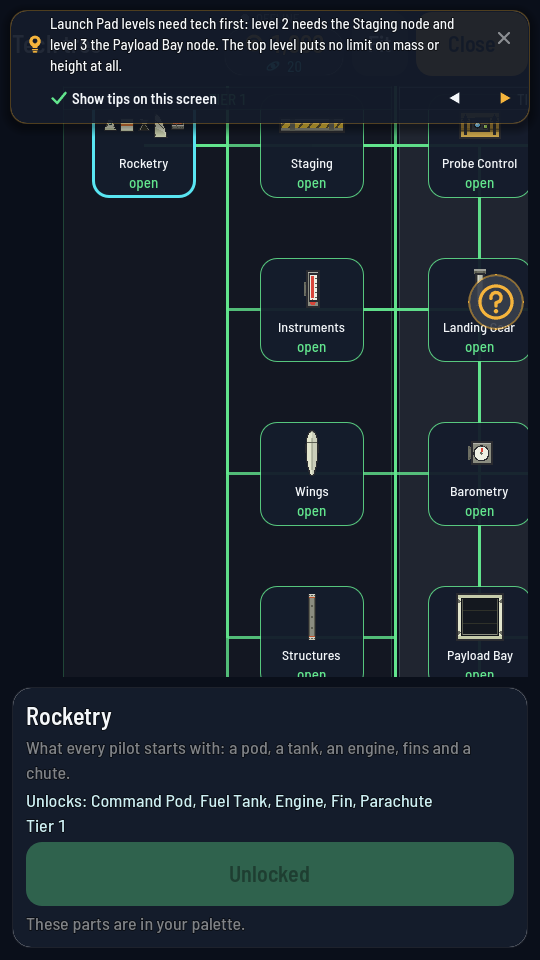
The tech tree's tips.
What you should see
Only tips about the screen you opened them on. New tips can arrive any day, without an update, so a screen can have more of them tomorrow than it has today — worth a look now and then. Reading a tip changes nothing and pays nothing, and the game does not remember which ones you have read: open them as often as you like.